VDO Tachograph Pairing
Pairing the VDO tachograph via Bluetooth enables direct data download from the driver card, through the tachograph, into the app.
Prerequisites
- ✓The driver card must be inserted in the tachograph
- ✓The tachograph must be Bluetooth-capable (G2V2 Smart generation)
- ✓The phone’s Bluetooth must be turned on
- ✓The TachoAI or TachoAI app must be open on the phone
Checking whether the tachograph supports Bluetooth
VDO tachographs support Bluetooth from the GEN2 v2 (Smart 2) generation onwards. You can check the generation of your device as follows:
- Print a 24-hour or technical list from the tachograph
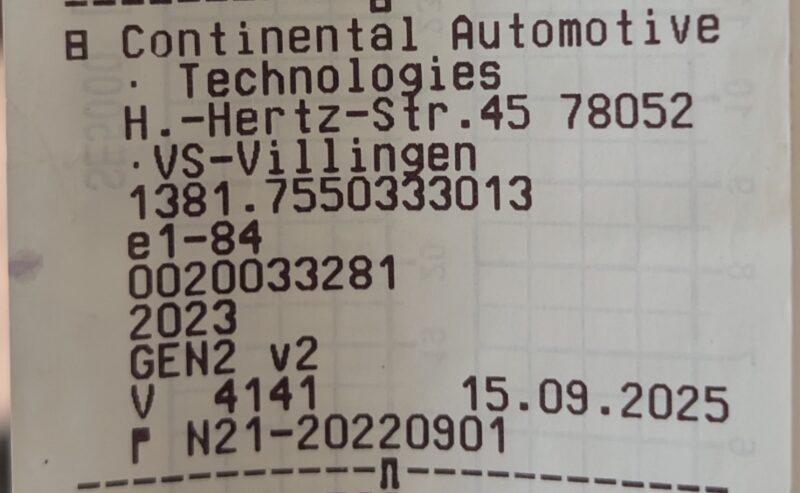
- At the bottom of the printout, locate the manufacturer header block (Continental Automotive Technologies · VS-Villingen)
- Below the manufacturer name you will see the part number, year, and the generation marker (e.g.
GEN2 v2) - If the marker is "GEN2 v2 · V 4141 · 15.09.2025" or newer → the tachograph is Bluetooth-capable and can be paired with the app
Older VDO tachographs
If the marker is only "GEN2" or "GEN1" — the tachograph does not support Bluetooth communication. In that case, use the Front Device for data download.
Important!
The pairing always applies to the same arrangement of the same driver cards — when driving solo, only to your own card. If a different card is inserted in the tachograph, or if your card is moved to a different slot, the previous pairing must be deleted on both the tachograph and the phone.
Tip — so the next driver is not blocked
Before you hand the vehicle to another driver, or switch to another card, delete the pairing while your own card is still in the device (see Deleting the pairing). If the previous pairing has been removed, pairing and read-out work instantly and without error with the new card.
The TachoAI and TachoAI app automatically detect nearby tachographs that can be paired, as well as those already paired.
Pairing steps on the tachograph
- Press the OK button on the tachograph
- Press the ▼ (down) button 2 times
- Select the "Driver 1" menu
- Press the OK button
- Press the ▲ (up) button 2 times
- Select the "Bluetooth" menu item
- Press the OK button
- Select the "Pair" option
- Select your phone from the list
- Confirm the pairing code on both devices
Warning!
The pairing is linked to the tachograph AND all driver cards inserted in it. If the cards change (e.g. another driver uses the tachograph), the pairing must be deleted and re-established!
Warning! An earlier pairing can block the new one
The VDO (DTCO) tachograph keeps only one active pairing at a time. If the tachograph already holds a pairing from before — yours from another phone, or a previous driver’s — and it was not deleted, the tachograph locks out the new pairing: it fails with a timeout no matter how many times you try.
What to do: first delete the earlier pairing on the tachograph (see below: “Deleting a pairing → 2. Delete on the tachograph”), and only then start pairing again. If an old entry is left on your phone too, delete it in the Bluetooth settings.
Removing the pairing
Why does this matter? Not only when changing device or driver: the VDO tachograph keeps the earlier pairing and blocks a new one until you delete it. So if pairing keeps failing with a timeout, delete the old one here first — on both sides.
If the driver cards have changed or the pairing is not working properly, you can remove it as follows:
1. Remove from the phone
- Open the phone's Settings menu
- Go to the Bluetooth section
- Find the tachograph name among paired devices
- Tap "Forget device"
2. Remove from the tachograph
Important: to delete the pairing on the tachograph you must insert the driver card the pairing was made with (the “original” card). In the Bluetooth menu the tachograph binds the pairing to this card – deletion is not available with any other card.
The pairing must also be removed on the tachograph. Enter the Bluetooth menu following the steps above, and select the delete option next to the phone name.
Tip
The pairing must be removed on both sides (phone AND tachograph), otherwise re-pairing will not succeed.
If the original card is no longer available
If the driver card used for the pairing is no longer available (e.g. the driver has left, or the vehicle was reassigned to another driver), the pairing currently cannot be deleted on the tachograph by the driver. In this case:
- contact your fleet manager / dispatcher, or
- an official VDO tachograph workshop that can release the pairing.
We have reported this situation to the tachograph manufacturer (VDO / AUMOVIO) and are working on a card-independent release option. As soon as an official solution is available, we will update this guide here.