Downloading the tachograph (vehicle unit)
Downloading the tachograph (vehicle unit) is available only in the TachoData+AI app. Reading a driver card in the TachoData app is a separate function. This guide describes version 26.11.18 of TachoData+AI for Android.
The application screenshots are in English and show the company’s own test data. Drawings illustrate the VDO menu steps. Click an image to open a larger view.
What does downloading the tachograph mean?
The vehicle unit file contains the vehicle data recorded by the tachograph: drivers’ daily activities, events and faults, technical data and, optionally, detailed speed data. It is separate from the driver card file.
- With a front device: a paired TachoMI / AETRControl Front Device and a company card inserted in the tachograph are required. This route also works with supported older tachographs.
- With a direct Bluetooth connection: a Bluetooth-capable smart 2 tachograph, suitable firmware, an inserted company card and a phone paired with the tachograph are required. No separate front device is needed.
Requirements and subscription
Tachograph download is included in the “TachoAI Pro + Tachograph” subscription, available monthly or for 6 months. It is also available during the 14-day free trial. The “TachoAI Pro” subscription for driver card download alone does not include it.
The company card must be inserted in the tachograph. Without a company card, only the driver card can be read.
Direct Bluetooth download requires suitable tachograph firmware. The app indicates the version status with a green check mark or a red cross. A tachograph workshop updates outdated firmware.
Checking the tachograph firmware version → VDO Tachograph Pairing
If you do not have a tachograph download subscription
The “Download tachograph” dialog states that downloading the tachograph (vehicle unit) requires a tachograph download subscription. “Subscribe now” opens the subscription page.
“TachoAI Pro” covers driver card download; “TachoAI Pro + Tachograph” covers driver card and tachograph download. Both offer monthly and 6-month plans. If you already have Pro, use “Add tachograph download” to upgrade. The Play Store shows the current price.
Driver card reading remains subject to the trial and applicable subscription rules.
What would you like to download?
When the app detects the company card, a selection screen appears. Select “Download tachograph” and, if you also want to read the inserted driver card, “Read driver card”. At least one option must remain selected.
You can select both options: the tachograph data is downloaded first, followed by the driver card. The selection screen works the same way with a front device and a direct Bluetooth connection.
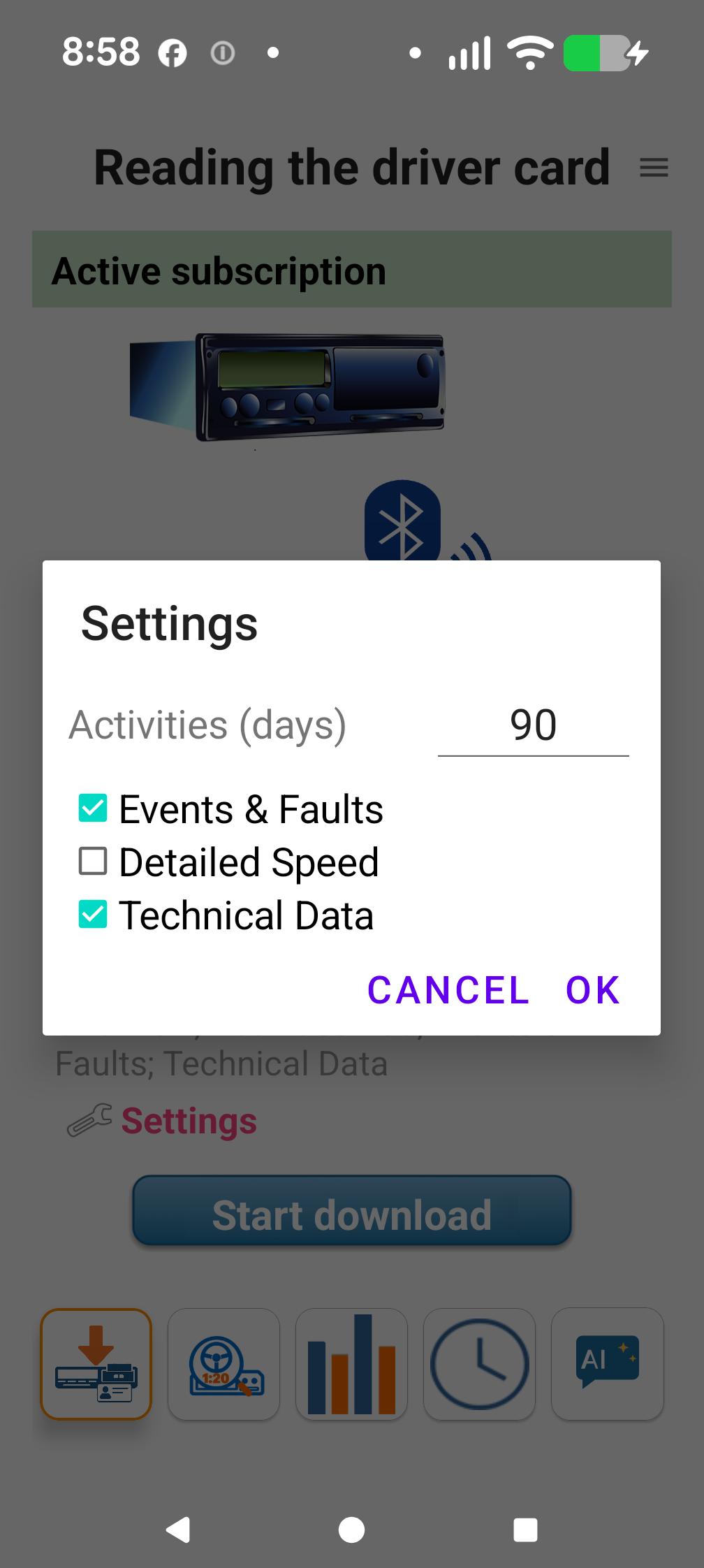
Check the summary, open “Settings” if necessary, then select “Start download”.
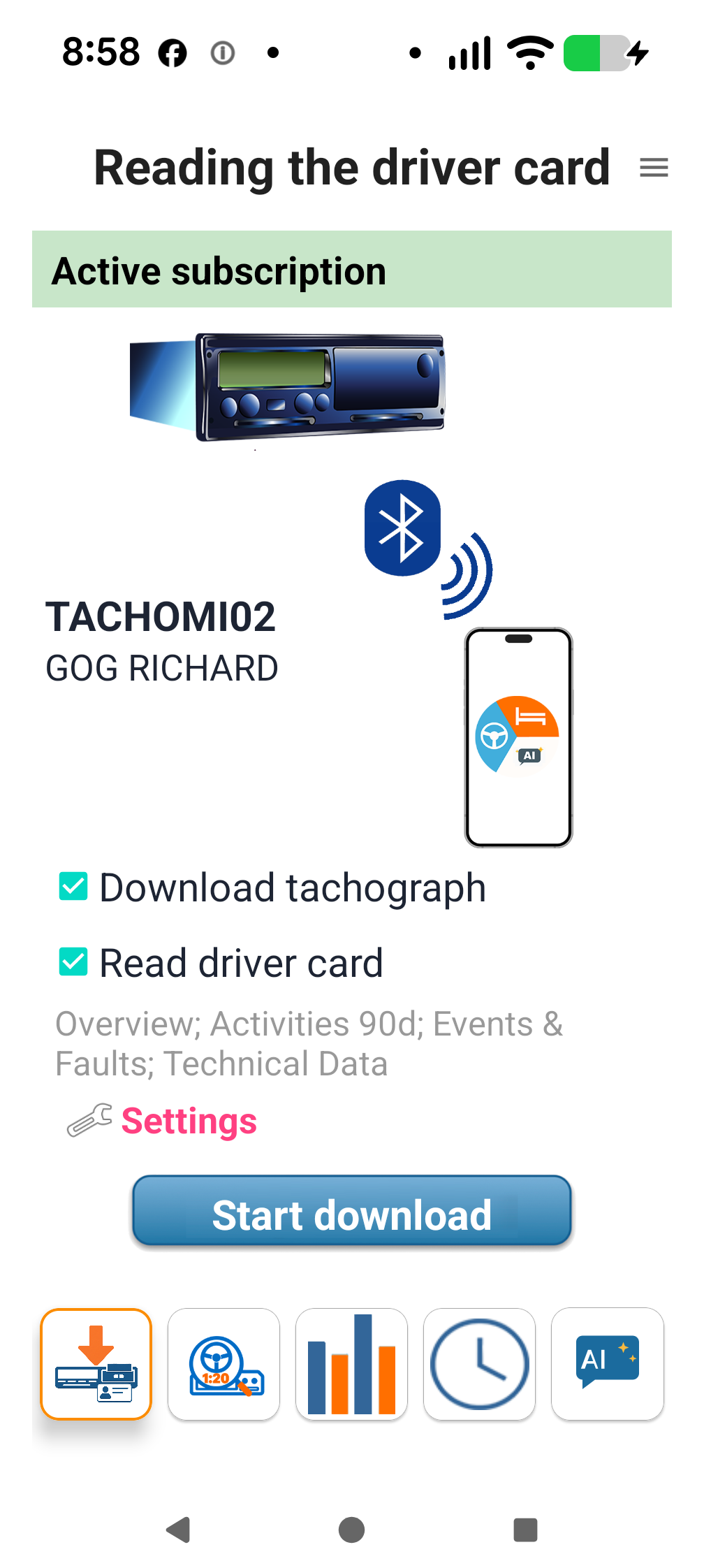
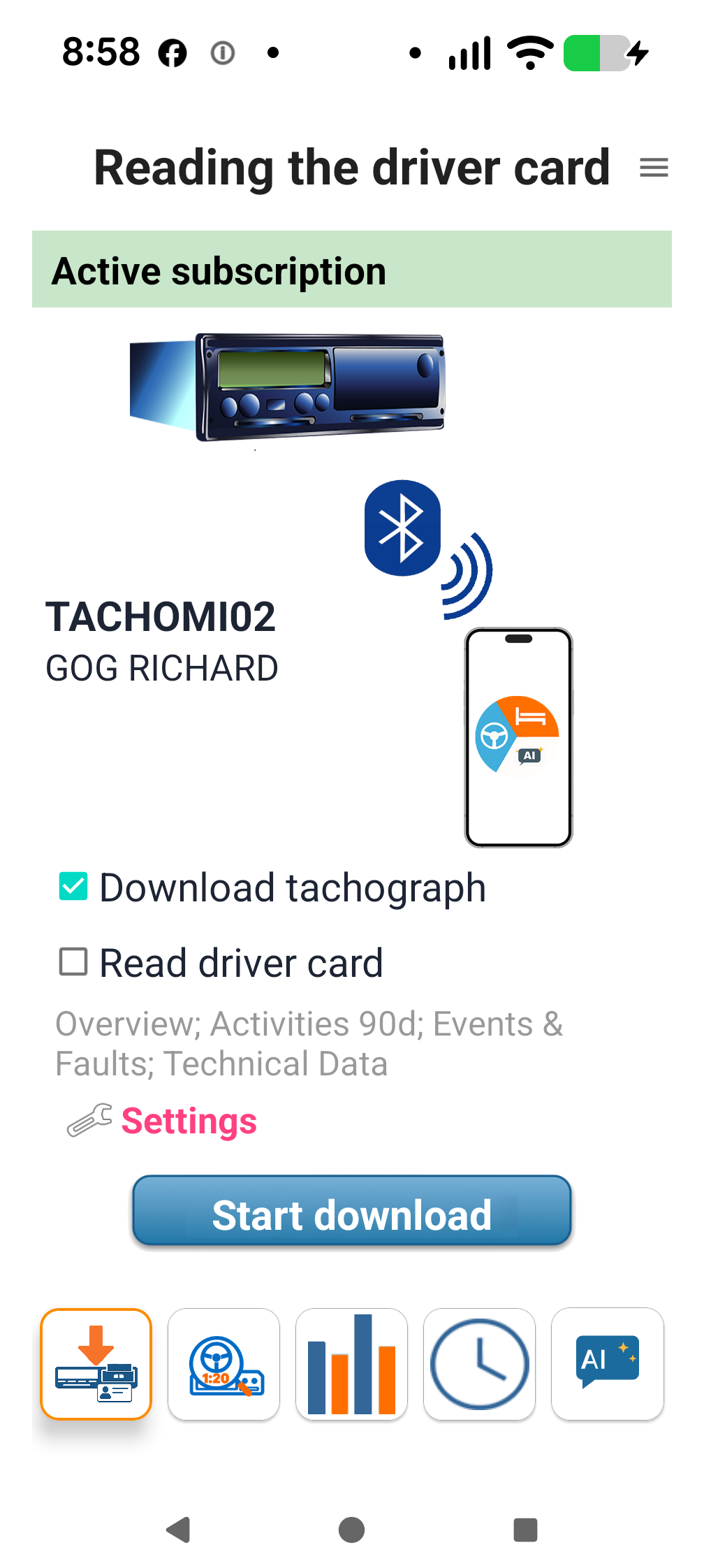
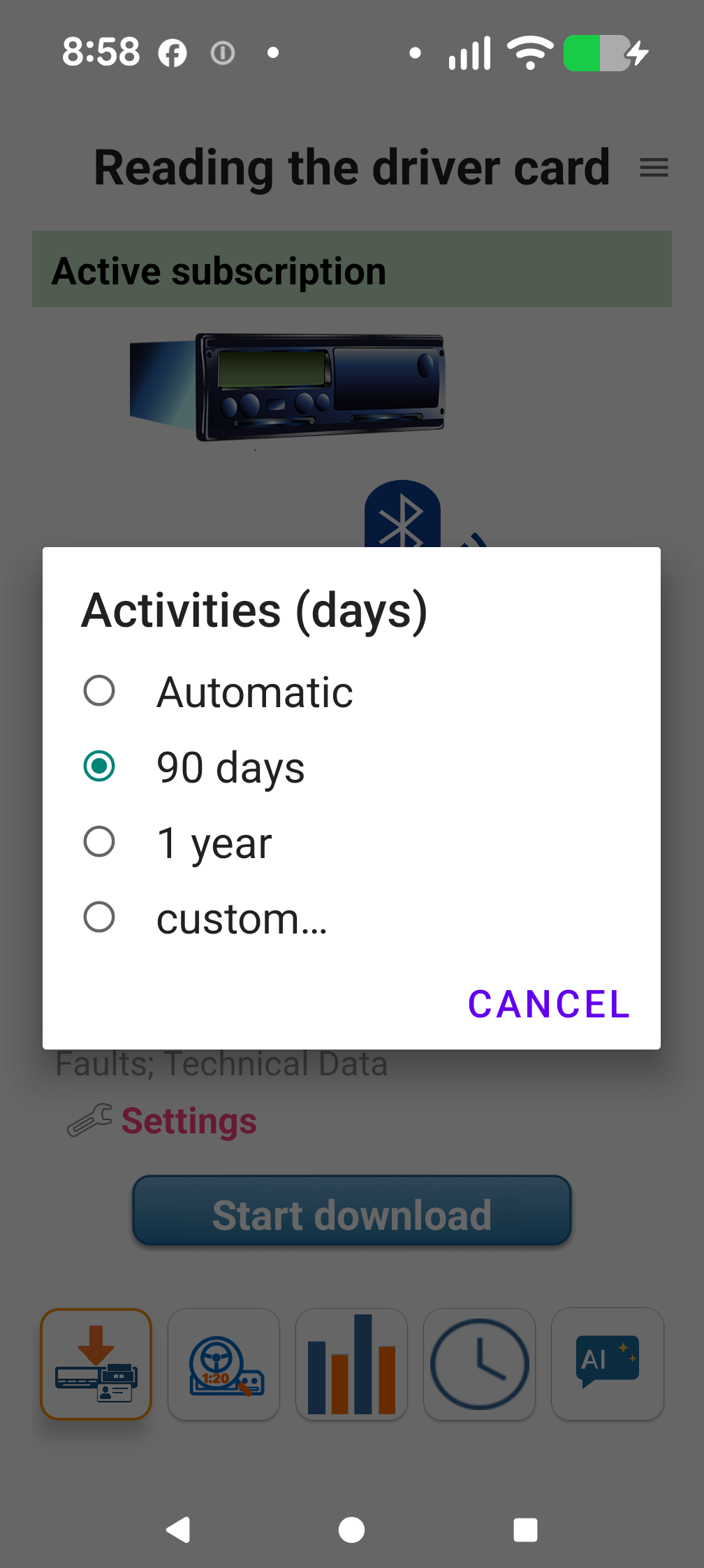
Choosing the data to download
Under “Activities (days)”, choose “Automatic”, “90 days”, “1 year” or “custom…”. For a custom period, enter the number of days. This guide does not specify the exact period used by Automatic mode.
“Events & Faults”: events and fault records stored in the tachograph.
“Detailed Speed”: detailed, second-by-second speed data; request it only when needed. It can increase the amount of data; exact coverage and download time depend on the device.
“Technical Data”: the tachograph’s technical information.
“Overview” is always included: it contains identification, download and control history, and company lock data. It cannot be disabled. The app retains your settings after a restart.
Download progress
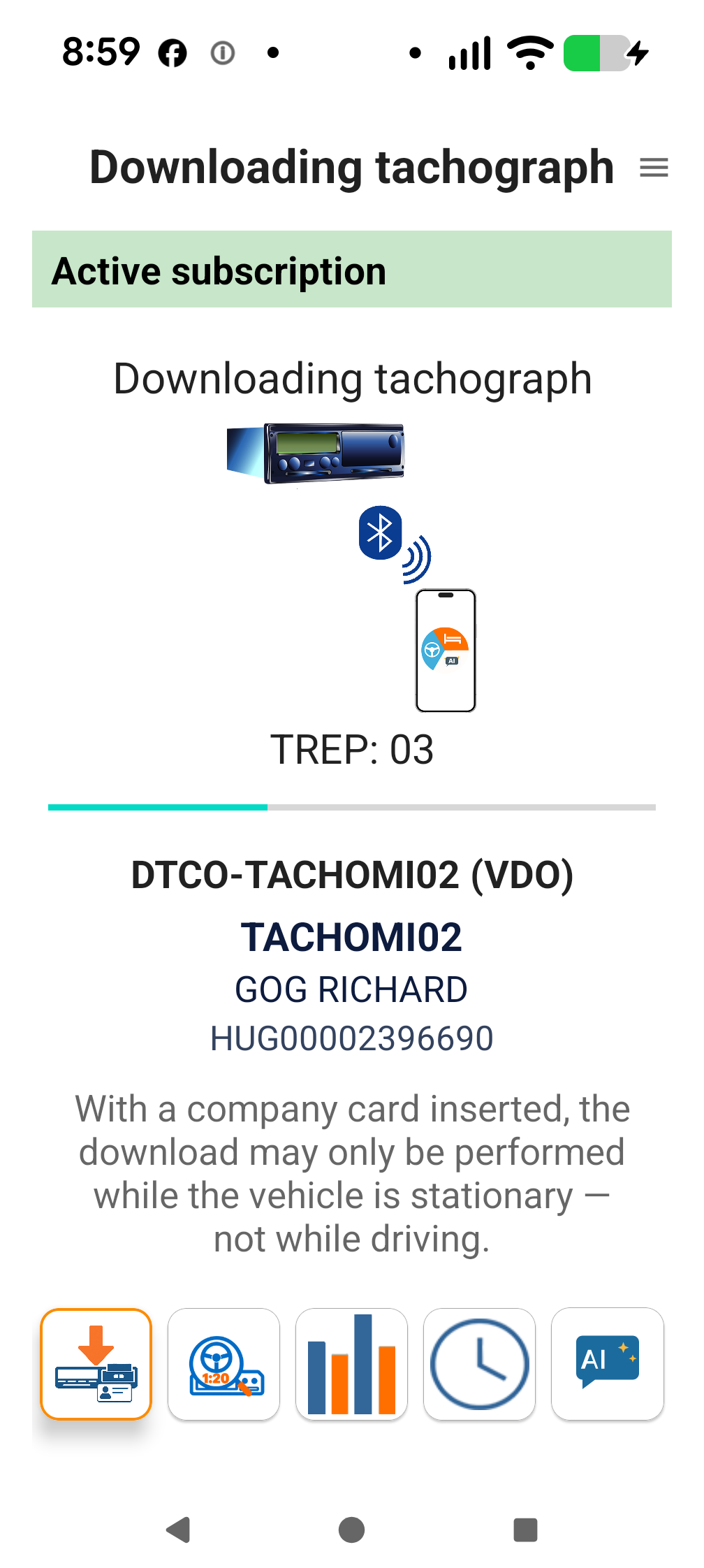
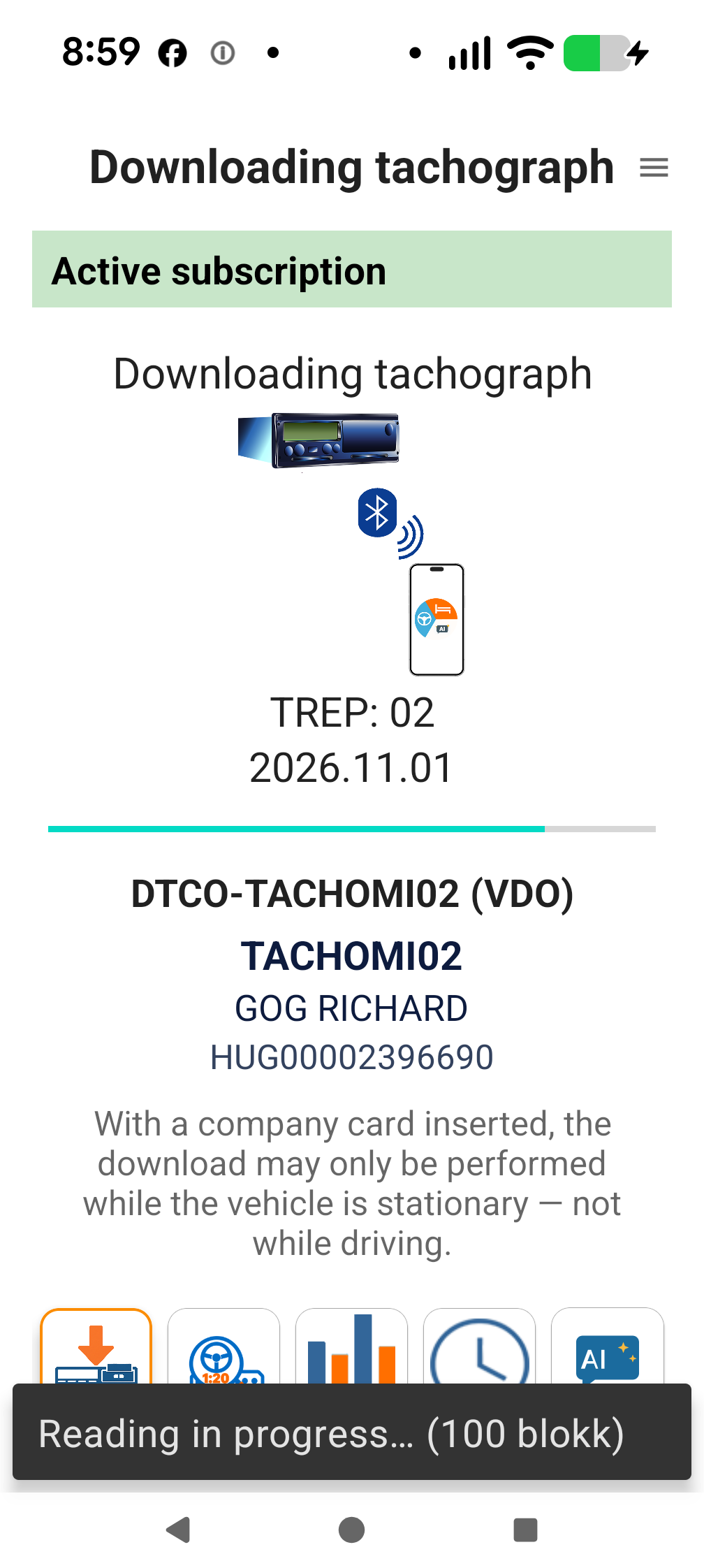
The progress bar on the “Downloading tachograph” screen shows data transfer. TREP: 01 is the overview, TREP: 02 daily activities, TREP: 03 events and faults, and TREP: 05 technical data. For daily activities, the date currently being read is also shown.
Indicative test result: downloading 90 days from a VDO without detailed speed took about 1 minute. A Stoneridge may take several minutes. Reading a driver card over direct Bluetooth may take about 4–5 minutes. These times are not guaranteed.
During a phone call, the download continues in the background; return to the app to see the result. If you also selected the driver card, its reading starts after the tachograph download.
Upload and the downloaded file
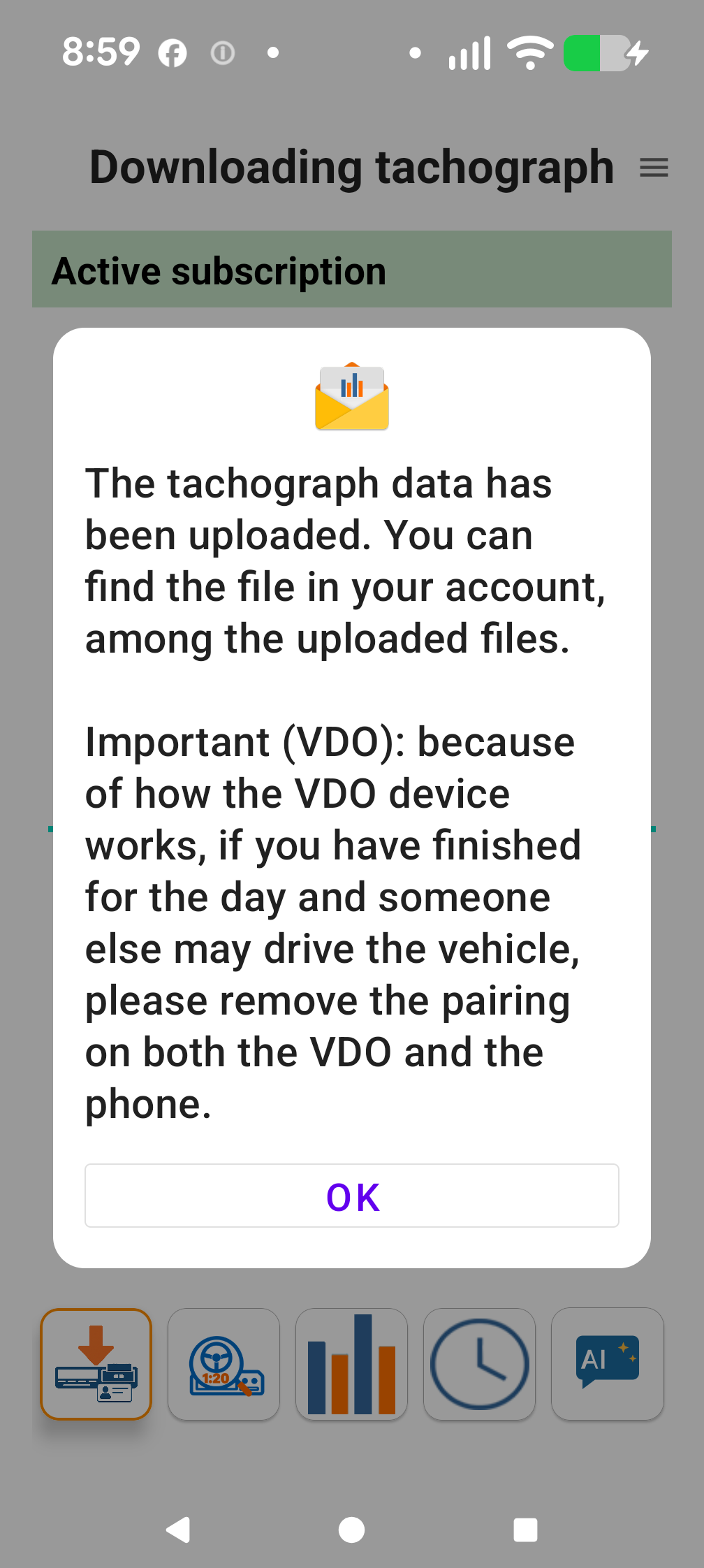
After a successful download, the app uploads the file automatically. The success message changes when the upload completes; also check the upload confirmation.
The tachograph file is a .ddd file whose name starts with M_. You can find and download it from “My files” in your web account. The vehicle unit file does not generate an infringement analysis. A separately read driver card receives the usual processing and notifications.
Detailed guide → My files on the web portal
If the tachograph was switched off on some days, their absence does not necessarily indicate a download error. For unexpected gaps, check the selected period and the vehicle’s use.
With a VDO, remove the pairing on both the tachograph and the phone at the end of the day or when handing over the vehicle, so that the next driver can connect.
Incomplete or interrupted download
“Incomplete download” means that the tachograph interrupted data transfer and daily activities were not fully downloaded. The app uploads events and technical data already received; this does not make the daily activity data complete.
Try the download again. If it is interrupted again, with the vehicle stationary, isolate the power as described in the linked guide, then retry. Switching off the ignition alone is not the same as isolating the power.
Downloading with a front device
Insert the company card in the tachograph, connect the paired TachoMI / AETRControl front device and open TachoData+AI. On the selection screen, select tachograph download, check the settings and start the download.
Without a company card, the device performs normal driver card reading. The Front Device and Front Tachograph Reader chapters describe this same TachoMI / AETRControl device and its supported tachographs.
Detailed guide → Front Device Usage
Detailed guide → Front Tachograph Reader
Direct Bluetooth download and pairing
Direct download requires a suitable Bluetooth-capable smart 2 tachograph and firmware, such as a VDO DTCO 4.1 / 4.2 or a suitable Stoneridge Smart 2. Insert the company card before pairing.
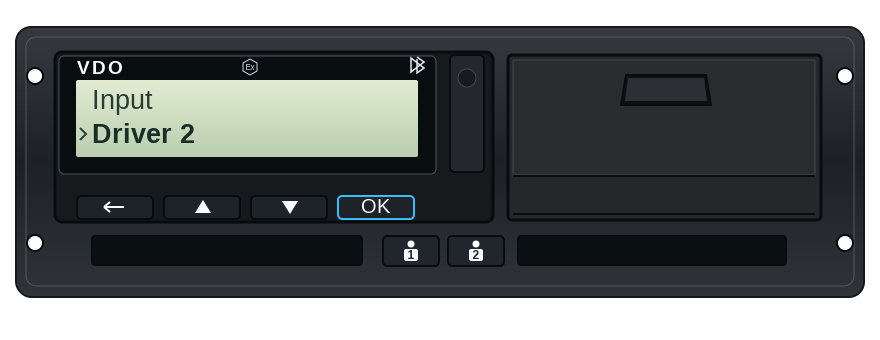
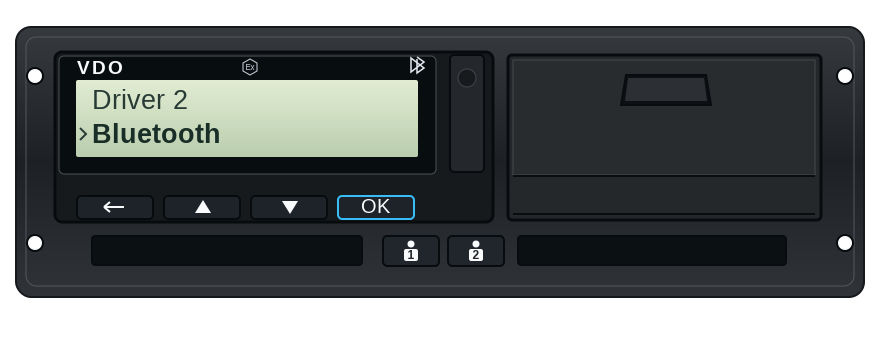
VDO: recommended pairing through the Driver 2 menu
The Driver 2 menu is a tested, recommended route; it is not necessarily the only working menu on every device. If the tachograph rejects queries with a company card inserted, try this pairing procedure.
- Remove the old pairing in the phone’s Bluetooth settings and on the tachograph.
- Place the driver card in slot 1 and the company card in slot 2.
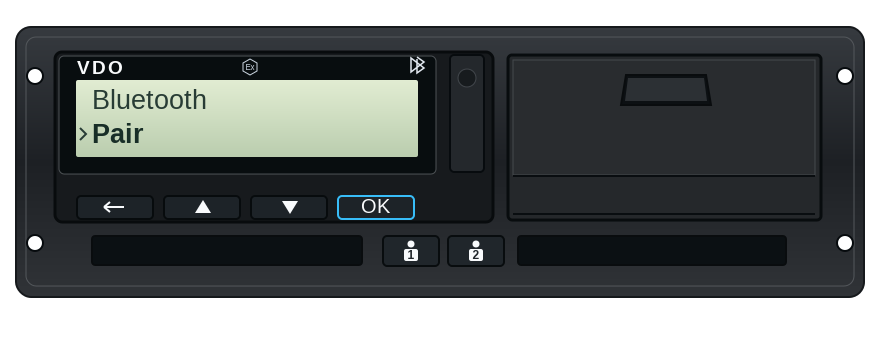
- VDO: Input → Driver 2 → Bluetooth → Pair.
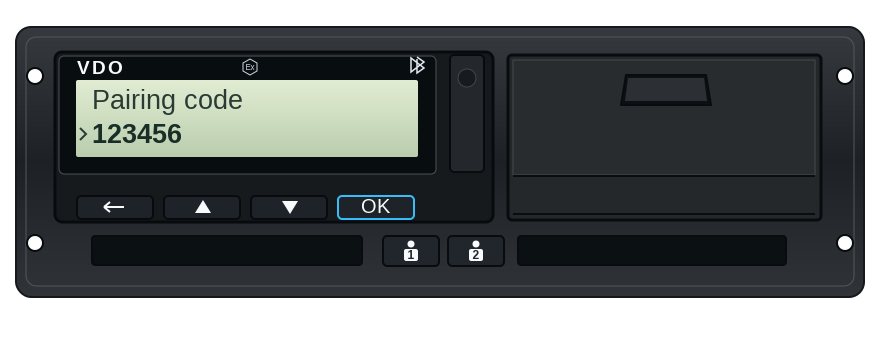
- Check that the phone and tachograph display the same six-digit code, then confirm pairing on both devices.
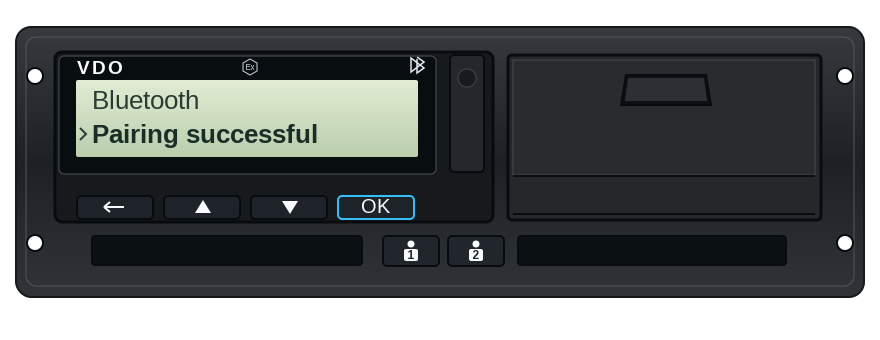
- After successful pairing, the app shows the data and download options.
Schematic illustrations. Menu wording may vary by device and language. The code 123456 is an example only.
Stoneridge: pairing with the company card inserted
Keep the company card in the tachograph when pairing. The app displays the selection screen after detecting the cards. Downloading may take several minutes; after an interruption, the app may reconnect and resume from the same day. If it becomes completely stuck, follow the incomplete download instructions.
Vehicle unit download was tested with Stoneridge version 2626. The minimum supported version has not yet been confirmed. Version 1619 is known for Bluetooth driver card reading. Vehicle unit download support for version 1619 has not been confirmed.
Detailed guide → Stoneridge Tachograph Pairing
Guided help and returning to driver card reading
The menu help “Download tachograph (with company card)” guides you through seven steps: remove the old pairing; insert the company card; pair with the company card inserted; download; remove pairing; remove the company card; pair again for the driver card. Use “Next” and “‹ Back” to navigate.
The “Bluetooth” button in steps 1 and 5 opens the phone’s Bluetooth settings. The guide indicates whether the phone is still paired or the pairing has been removed.
To return to reading only your own driver card, first remove pairing on both devices while the company card is still inserted. Then remove the company card, leave the driver card inserted and pair again through the usual driver menu.
Frequently asked questions
- Why is tachograph download not offered?
- Check that you are using TachoData+AI, the company card is inserted and the app has detected it. On a VDO, if needed, remove pairing on both devices and pair through the Driver 2 menu.
- I selected both. Which is downloaded first?
- First the tachograph, then the driver card.
- Can I download the vehicle unit while driving?
- With a company card inserted, downloading is permitted only while the vehicle is stationary — never while driving.
- Where is the file, and will I receive an analysis?
- In “My files” on the website, as a .ddd file with a name starting with M_. The vehicle unit file does not generate an infringement analysis; that analysis belongs to the separately downloaded driver card.